Team leave calendar
Who's off, this week and every week
Leavepad's team leave calendar shows everyone's time off in one place. It updates itself with every request and approval, so the whole team can see who's away before they book, plan cover or schedule a meeting.
Get started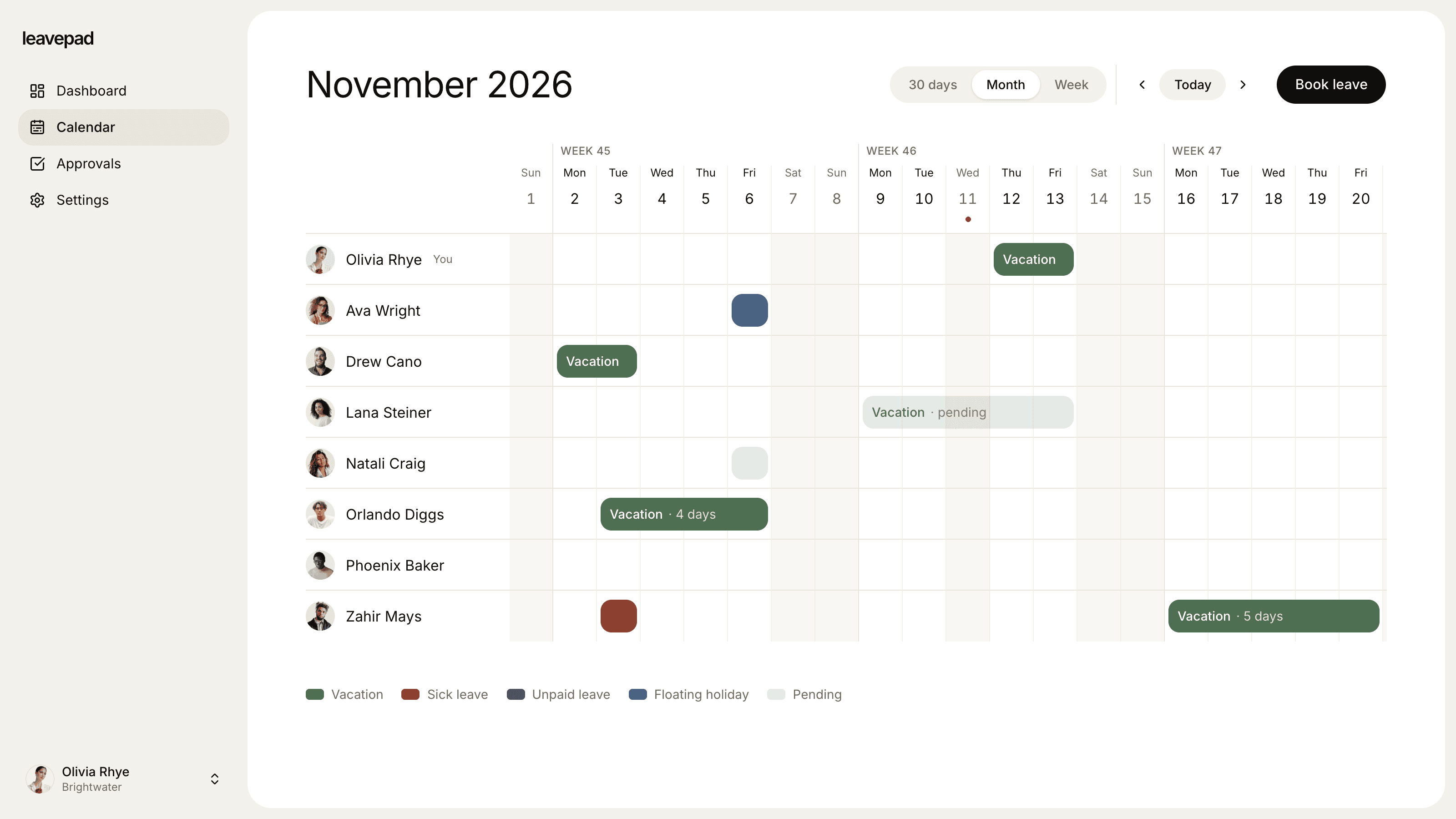
Sound familiar?
A wall planner nobody updates
Leave agreed over email never reaches the planner, so it's wrong the moment someone forgets to fill it in.
Clashes found too late
Two people book the same week and nobody notices until the team is short-handed.
"Is anyone off on Friday?"
Planning a meeting or a deadline means asking around, checking inboxes and hoping you didn't miss anyone.
Who's off
See who's away at a glance
Switch between the next 30 days, a month or a single week. Every approved request appears on the calendar straight away, and pending requests show in a lighter shade, so you can spot a clash before you approve it.
- 30-day, month and week views
- Pending requests shown before they're approved
- Everyone in the company sees the same calendar
Colour-coded
Every kind of leave, colour-coded
Holiday, sickness, training, parental leave: each leave type has its own colour, so the calendar tells you not just who's off, but why. A legend on the calendar keeps it clear.
- A colour for each leave type
- Leave types for your own policy
- Sick days and holidays on one calendar
Working week
Built around your working week
Set the days your company works, its country and its time zone. Weekends and non-working days are shaded, public holidays are marked, and every date means the same day for the whole team.
- Your working days, including four-day weeks
- Public holidays marked on the calendar
- One company time zone for every date
More than a shared leave calendar
Book leave from the calendar
Employees request leave right from the calendar. Managers and admins can book it for their team too.
One-click approvals
Requests go to the right manager, and appear on the calendar the moment they're sent.
Public holidays built in
Import your country's holidays in one click. They're marked on the calendar and never cost anyone leave.
Balances that keep up
Every approved day comes off the right balance, counting only working days.
Your leave policy
Set an allowance, colour and approval rule for each leave type, or no limit at all.
Private to your company
Row-level security keeps each company's calendar visible only to its own people.
What Leavepad replaces
One team leave calendar everyone can see, instead of the wall planner, the shared spreadsheet and the out-of-office emails.
- Team leave calendarA wall planner nobody updates
- Who's off todayAsking around the office
- Out-of-officeStatus messages and auto-replies
- Leave requestsEmails and chat messages
- Public holidaysLooking up this year's dates
- Leave balancesA separate spreadsheet
Guide
How to set up a team leave calendar
A leave calendar is only useful if it's complete and everyone trusts it. These steps keep it that way.
- 1
Put every kind of leave on it
Holiday, sickness, training and parental leave all leave a gap in the team. Track them all, with a colour for each, so the calendar shows the real picture.
- 2
Make it the only place leave is booked
If leave can also be agreed over email or in passing, the calendar will drift. One place to request leave means one calendar that's always right.
- 3
Show pending requests too
Seeing requests before they're approved lets people avoid a clash before it happens, and lets managers spot one before they say yes.
- 4
Add public holidays and company days off
Mark public holidays and any shutdowns first, so nobody books around a day that's already off.
- 5
Share it with the whole team
A leave calendar that only managers can see doesn't stop clashes. When everyone can check who's off, they plan around each other.
Free leave calculators
Business Days Calculator
Count the working days between two dates, or add business days to a date, skipping weekends and US federal holidays.
Open the calculatorAbsence Rate Calculator
Work out your team's absenteeism rate, the days lost per employee and the pay cost of unplanned absence, by days or hours.
Open the calculatorPublic Holidays 2027
Every public and bank holiday in 2027 for over 200 countries, with weekdays, regional holidays and long weekends.
See the holidays
Team leave calendar: FAQ
What is a team leave calendar?
+
A team leave calendar shows who is off and when across your whole team, usually with each kind of leave in its own colour. In Leavepad it's built from leave requests themselves, so it updates automatically as requests are made and approved.
Who can see the team leave calendar?
+
Everyone in your company can see the calendar, including approved leave and pending requests, so the whole team can plan around each other. People outside your company never can.
Does the calendar show pending requests?
+
Yes. Pending requests appear in a lighter shade of their leave type's colour, so you can see a possible clash before you approve it.
Can I see a whole month at a time?
+
Yes. Switch between the next 30 days, a full month and a single week, and step backwards and forwards in time.
Does the calendar include public holidays?
+
Yes. Import your country's public holidays for any year and add your own company days off. They're marked on the calendar, along with weekends and other non-working days.
Can I book leave from the calendar?
+
Yes. Employees can request leave straight from the calendar, and managers and admins can book leave for the people they manage. Leave booked for someone else is approved straight away.
Is a shared spreadsheet good enough as a leave calendar?
+
For a few people, sometimes. But a spreadsheet only knows what someone typed into it, has no approvals and doesn't track balances. A leave calendar built from requests is always complete and keeps balances in step.
More ways to use Leavepad
PTO tracker
Time off requests, one-click approvals and PTO balances that update themselves.
Learn moreVacation tracker
Vacation requests, balances and a shared team vacation calendar, without the spreadsheet.
Learn moreAnnual leave planner
Annual leave allowances, carry-over and bank holidays worked out for you, all year.
Learn more
Built for every kind of team
Small businesses
A staff holiday tracker that handles allowances and public holidays without an HR department.
Agencies
Plan project staffing around annual leave and see clashes before a deadline does.
Accounting firms
Keep the team in the office through busy season and spread holidays across the quiet months.
Remote teams
One team leave calendar across time zones, so nobody is surprised by an empty chat channel.
Four-day week companies
Count leave in your working days, not someone else's, with no manual conversions.
See who's off, at a glance
Set up Leavepad for your team in a few minutes. Invite your people and they can book time off today.
Get started